Invalidating mobile keys after biometric enrolment changes
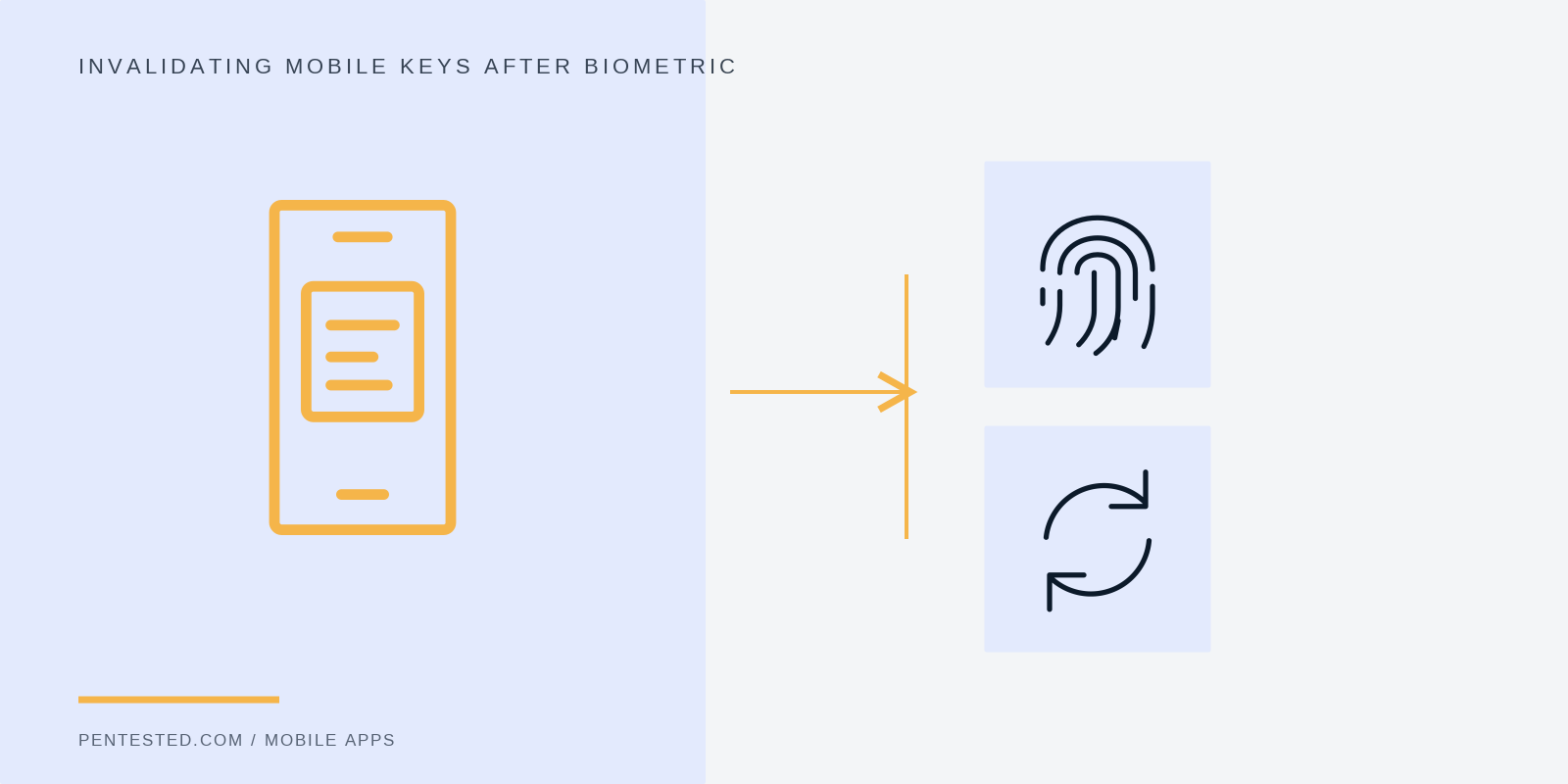
New biometric enrolment may change who can satisfy an existing key's authentication conditions. Understanding invalidating mobile keys after biometric enrolment changes helps establish which security property the feature needs and where that property is actually enforced.
What does this involve?
Authentication establishes who is making a request and the strength and freshness of that evidence. Enrolment, recovery, alternate channels and changes to authenticators are part of the same boundary. An impressive login screen provides little assurance if another path grants equivalent access with weaker checks.
By default and when set to true, a key becomes permanently invalidated if a new biometric is enrolled. As a result, only users whose biometric data was enrolled when the item was created can unlock it. This prevents unauthorised access through biometrics enrolled later.
The test identifies the absence of the kSecAccessControlBiometryCurrentSet access control flag when storing sensitive items in the Keychain via SecAccessControlCreateWithFlags. This flag ensures that the associated Keychain item becomes inaccessible if the biometric database changes (e.g., when a new fingerprint or face is added). As a result, only users whose biometric data was enrolled at the time the item was created can unlock it, preventing unauthorised access through later-enrolled biometrics.
Why it matters
Consider a realistic failure: a newly enrolled fingerprint can use a key created before an account owner changed their device access.
Account access can lead to disclosure, unwanted changes or misuse of a trusted identity. The consequence depends on the account's permissions and the actions available after authentication, rather than the appearance of the login mechanism.
Mobile behaviour can change between a fresh installation, an authenticated session, background activity and a device migration. The assessment needs the actual release and representative supported device states.
How penetration testers check for it
Change biometric enrolment and test previously created key operations.
- Exercise the app extensively to trigger as many flows as possible and enter sensitive data wherever you can.
- Check expiry, reuse and the binding of challenges to their intended action.
- Follow successful authentication into the operation that trusts it.
How to fix it
Invalidate and re-establish sensitive key relationships when the chosen policy requires it.
- Apply consistent verification at trusted boundaries.
- Protect enrolment, replacement and recovery as carefully as login.
- Require appropriate fresh evidence for sensitive changes.
- Record important authentication events without retaining secrets.
Authentication and authorisation answer different questions. Establishing identity does not grant unrestricted permission to records or privileged functions.
Recheck the changed behaviour against the original failure conditions and the legitimate user journey. Keep enough evidence to show which release and configuration were verified, and include related entry points that depend on the same security decision.
Related issues
- Biometric fallback risks in sensitive mobile transactions
- Sensitive mobile data remaining after logout
- Restricting access to mobile cryptographic keys
Read about our methodology or contact pentested.com to discuss your mobile applications.